Поднять SOCKS5 в Docker — это одна команда. Поднять SOCKS5 в Docker так, чтобы через сутки им не пользовался кто-то ещё, — это примерно двадцать строк, каждая из которых что-то значит. Разница между двумя этими результатами и есть содержание статьи.
Ниже — готовый docker-compose.yml, разобранный построчно, и четыре ловушки, в которые попадают почти все: от порта, открытого в интернет по невнимательности, до потери SSH-доступа к собственному серверу.
Если нужен вариант без контейнера — про ssh -D, Dante и 3proxy на голом сервере есть отдельный разбор.
Чем поднимать: три кандидата
| Образ | Что внутри | Аутентификация | Особенности |
|---|---|---|---|
serjs/go-socks5-proxy |
SOCKS5-сервер на Go | REQUIRE_AUTH (по умолчанию true), PROXY_USER / PROXY_PASSWORD |
есть ALLOWED_IPS и ALLOWED_DEST_FQDN — фильтр по источнику и по регулярке на домен назначения |
ghcr.io/tarampampam/3proxy:2 |
3proxy | PROXY_LOGIN / PROXY_PASSWORD |
SOCKS на 1080 и HTTP-прокси на 3128 одновременно, MAX_CONNECTIONS (512 по умолчанию), свои резолверы |
| свой образ с Dante | sockd |
системные пользователи, PAM | максимум контроля, но конфиг придётся монтировать томом и собирать образ самому |
Для типичной задачи «дать одному-двум приложениям выход через этот сервер» хватает первого. Второй интереснее, если нужен ещё и HTTP-прокси на том же контейнере: актуальная версия образа — v2.1.0 от 16 июня 2026, порты по умолчанию 3128/tcp (HTTP) и 1080/tcp (SOCKS), резолверы 1.0.0.1 и 8.8.4.4 задаются переменными PRIMARY_RESOLVER и SECONDARY_RESOLVER.
Compose-файл целиком
services:
  socks5:
    image: serjs/go-socks5-proxy
    container_name: socks5
    restart: unless-stopped

    environment:
      REQUIRE_AUTH: "true"
      PROXY_USER: "socksuser"
      PROXY_PASSWORD: "${SOCKS_PASSWORD:?переменная не задана}"
      PROXY_PORT: "1080"
      ALLOWED_IPS: "203.0.113.10,203.0.113.11"

    ports:
      - "127.0.0.1:1080:1080"

    healthcheck:
      test: ["CMD-SHELL", "nc -z 127.0.0.1 1080 || exit 1"]
      interval: 30s
      timeout: 5s
      retries: 3
      start_period: 10s

    security_opt:
      - no-new-privileges:true
    cap_drop:
      - ALL
    read_only: true
    tmpfs:
      - /tmp

    logging:
      driver: json-file
      options:
        max-size: "10m"
        max-file: "3"
Пароль лежит в .env рядом с compose-файлом, а не в самом compose:
echo "SOCKS_PASSWORD=$(openssl rand -base64 24)" > .env
chmod 600 .env
Конструкция ${SOCKS_PASSWORD:?...} — не украшение: без неё пустая переменная молча превратится в пустой пароль, и контейнер поднимется. С ней docker compose up откажется стартовать и напишет причину.
Что делает каждый блок
restart: unless-stopped. Из четырёх значений политики перезапуска (no, always, on-failure, unless-stopped) для сервиса, который должен пережить перезагрузку сервера, но остаться выключенным, если вы его выключили руками, подходит именно это. always поднимет контейнер даже после вашего осознанного docker stop — при следующем старте демона.
environment. ALLOWED_IPS — список источников через запятую. Это фильтр внутри самого прокси; он не отменяет файрвол, но закрывает случай «порт по ошибке открыт наружу, а логин угадали».
ports: "127.0.0.1:1080:1080". Самая важная строка файла. Разбор — ниже, в ловушке №1.
healthcheck. Набор полей compose: test, interval, timeout, retries, start_period и start_interval. Проверка nc -z подтверждает, что порт принимает соединения, — не то же самое, что «прокси работает», но ловит самый частый отказ: процесс упал, контейнер жив. start_period даёт контейнеру время подняться, не набирая неудачных попыток.
security_opt, cap_drop, read_only. SOCKS-прокси не нужны ни привилегии, ни право писать в свою файловую систему. Три строки — и последствия гипотетической дыры в самом прокси резко сужаются.
logging. Без ограничения размера json-file растёт до заполнения диска. Прокси — как раз тот сервис, который пишет строку на каждое соединение.
Ловушка 1. -p 1080:1080 открывает порт в интернет
В документации Docker это сказано открытым текстом: «Publishing container ports is insecure by default. Meaning, when you publish a container’s ports it becomes available not only to the Docker host, but to the outside world as well».
То есть ports: - "1080:1080" — это не «пробросить порт внутрь хоста». Это «слушать 0.0.0.0:1080». Открытый SOCKS5 на стандартном порту находят сканеры, и это вопрос часов, а не недель.
Правильная форма — с явным адресом:
ports:
  - "127.0.0.1:1080:1080"     # только сам хост
  # - "10.8.0.1:1080:1080"    # только через VPN-интерфейс
Документация: «If you include the localhost IP address (127.0.0.1, or ::1) with the publish flag, only the Docker host can access the published container port».
Оговорка из той же документации: в версиях Docker до 28.0.0 хосты в том же сегменте локальной сети могли достучаться до портов, опубликованных на localhost, вопреки ожидаемому поведению. Проверьте docker version — если сервер на старой ветке, не полагайтесь на 127.0.0.1 как на единственную защиту.
Как тогда пользоваться прокси с ноутбука, если он слушает только петлю на сервере? Через SSH:
# на клиенте: локальный 1080 → 127.0.0.1:1080 на сервере
ssh -L 127.0.0.1:1080:127.0.0.1:1080 -N user@vps.example.com
Получается два туннеля вместо одного, зато наружу не торчит ничего. Альтернатива — повесить публикацию на адрес WireGuard-интерфейса и ходить через VPN.
Ловушка 2. UFW не закрывает контейнерные порты
Классика: администратор пишет ufw deny 1080/tcp, проверяет ufw status, видит DENY — и порт всё равно отвечает снаружи.
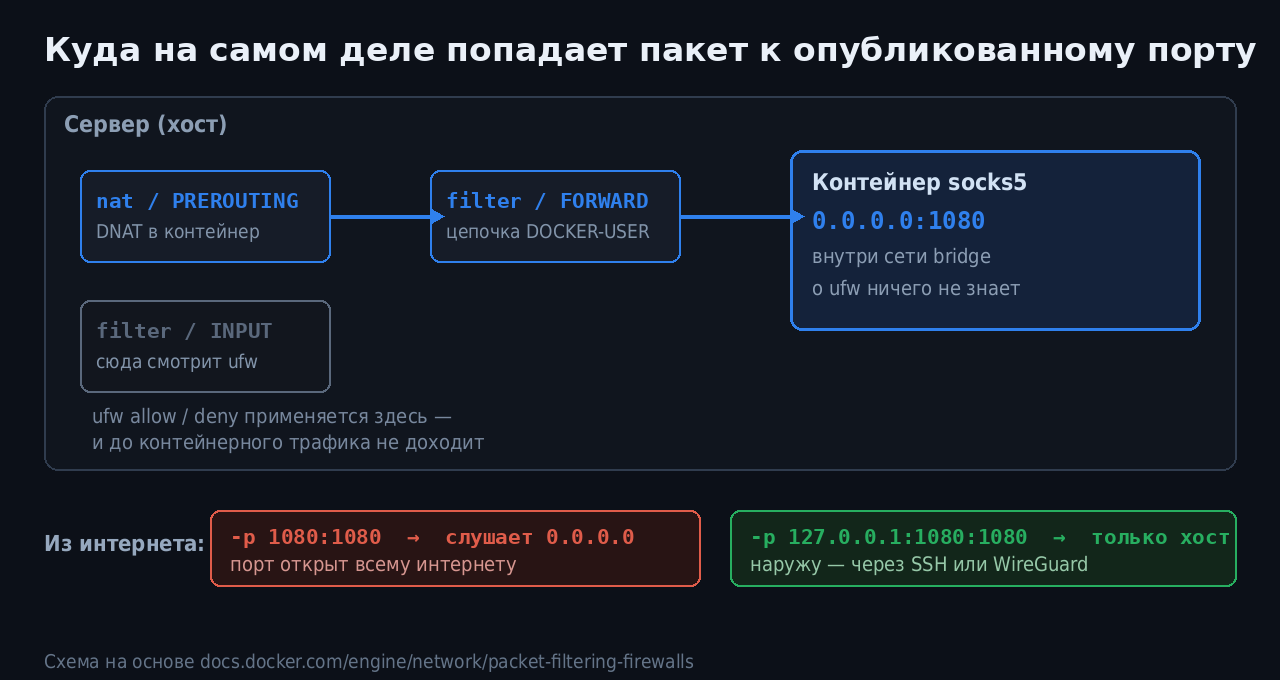
Схема на основе Packet filtering and firewalls | Docker Docs
Официальное объяснение: «When you publish a container’s ports using Docker, traffic to and from that container gets diverted before it goes through the ufw firewall settings». Причина техническая: «Docker routes container traffic in the nat table, which means that packets are diverted before it reaches the INPUT and OUTPUT chains that ufw uses». Итог — «Packets are routed before the firewall rules can be applied, effectively ignoring your firewall configuration».
Не считайте ufw status доказательством того, что порт закрыт. Единственная надёжная проверка — попытка подключиться с другой машины:
nc -vz vps.example.com 1080
Connection refused или таймаут — хорошо. succeeded — плохо, независимо от того, что показывает ufw.
Практических выходов два, и первый предпочтительнее:
- Не публиковать порт наружу вообще —
127.0.0.1:1080:1080, как выше. Тогда вопрос файрвола для этого сервиса просто не возникает. - Если публиковать всё же надо — фильтровать в цепочке
DOCKER-USER, которая обрабатывается до правил Docker, либо использовать известный набор правил ufw-docker. На форуме это разобрано отдельно: UFW-Docker: как закрыть порты Docker-контейнеров.
Ловушка 3. DNS резолвится не там, где вы думаете
Контейнер получает резолверы от Docker (по умолчанию — встроенный 127.0.0.11, который проксирует к резолверам хоста). Прокси-сервер внутри контейнера будет резолвить имена через них.
Дальше начинается путаница из двух слоёв:
- Слой клиента. Если клиент ходит по схеме
socks5://, он резолвит имя сам и отдаёт прокси уже IP. Всё, что вы настроили внутри контейнера, к делу не относится. Нужна схемаsocks5h://(или флаг--socks5-hostnameу curl) — тогда имя резолвит прокси. - Слой контейнера. Уже после этого имеет значение, какими резолверами пользуется контейнер. Если сервер стоит там, где локальный DNS отвечает подменёнными адресами, прокси добросовестно вернёт вам ту же подмену.
Задать резолверы явно:
services:
  socks5:
    dns:
      - 1.1.1.1
      - 9.9.9.9
Проверка, что имя реально резолвит сервер, а не клиент, — на самом сервере:
# в одном терминале
sudo tcpdump -i any -n port 53
# в другом, с клиента
curl -x socks5h://socksuser:PASS@127.0.0.1:1080 https://ifconfig.co
Запрос на 53-й порт появился — значит, резолвит прокси. Не появился — вы забыли букву h в схеме.
Ловушка 4. Как не отрезать себе доступ к серверу
Три самых частых способа остаться снаружи собственной машины:
Правило файрвола раньше, чем проверка. ufw deny incoming без предварительного ufw allow OpenSSH — и всё. Порядок всегда такой: сначала разрешить SSH, потом закрывать остальное, и только потом ufw enable.
network_mode: host «чтобы проще». Контейнер начинает слушать на всех интерфейсах хоста, ports перестаёт работать вовсе, изоляция исчезает. Для SOCKS5 в этом нет никакой нужды: обычной bridge-сети достаточно. Про режимы сети в Docker на форуме есть подробный разбор.
Проверка правил без страховки. Перед экспериментами с файрволом на удалённом сервере полезно поставить отложенный откат:
# через 10 минут правила откатятся сами, если вы не отменили таймер
sudo bash -c 'echo "ufw --force reset && ufw allow OpenSSH && ufw --force enable" | at now + 10 minutes'
Убедились, что доступ жив, — снимаете задание через atrm. Не убедились — сервер сам себя починит.
Чек-лист перед тем, как оставить прокси работать:
docker compose config— посмотреть, во что развернулись переменные, и убедиться, что пароль не пустойss -tlnp | grep 1080на сервере — слушает127.0.0.1, а не0.0.0.0nc -vz <публичный_ip> 1080с другой машины — соединения нетcurl -x socks5h://user:pass@127.0.0.1:1080 https://ifconfig.co— отдаёт IP сервераcurl -x socks5h://127.0.0.1:1080 https://ifconfig.coбез пароля — отказdocker compose logs --tail=50 socks5— в логах видны ваши подключения и ничьи больше
Про безопасность — коротко и по делу
Открытый прокси — проблема не того, кто им пользуется, а того, кому принадлежит IP. Через ваш контейнер наружу пойдут чужие соединения с вашего адреса: спам, перебор паролей к чужим панелям, сканирование, скачивание того, за что придёт abuse-жалоба. Отвечать перед хостером будете вы, и «я не знал, что порт открыт» — не аргумент; в худшем сценарии машину выключат без предупреждения.
Что обязательно, а не «желательно»:
- Аутентификация всегда.
REQUIRE_AUTH: "true"и непустой пароль. Никаких «на пару часов для теста» — тестовые конфигурации живут годами. - Порт не в интернет. Публикация на
127.0.0.1или на адрес VPN-интерфейса, а доступ снаружи — через SSH или WireGuard. - Ограничение по источнику.
ALLOWED_IPSв переменных плюс правило вDOCKER-USER, если порт всё-таки опубликован. - Логи, которые кто-то читает. Ограниченные по размеру, но не выключённые. Чужой IP в логах — единственный сигнал, что прокси нашли.
- Пароль не в git.
.envв.gitignore, права600.
Источники
- Docker: Port publishing — «Publishing container ports is insecure by default», синтаксис
-pс адресом, оговорка про версии до 28.0.0 - Docker: Packet filtering and firewalls — почему ufw не видит контейнерный трафик, цепочка
DOCKER-USER - Docker Compose: services reference — поля
healthcheckи значенияrestart - serjs/socks5-server — переменные
REQUIRE_AUTH,PROXY_USER,ALLOWED_IPS,ALLOWED_DEST_FQDN - tarampampam/3proxy-docker — образ
ghcr.io/tarampampam/3proxy:2, порты и переменные
Открытый вопрос к тем, кто держит прокси в контейнерах: вы ограничиваете исходящие соединения самого контейнера? Прокси по определению ходит куда попросят, и правило «наружу можно только 80/443» ломает половину сценариев — но и превращает контейнер в куда менее интересную цель. Кто нашёл рабочий компромисс?