Архивная статья. Сборки DWG и сопутствующие скрипты давно не обновлялись и требуют серьёзной актуализации. Материал сохранён как исторический.
DWG CLI — сборка на базе того же скрипта DWG для запуска собственного VPN-сервера WireGuard на Docker, но без надстроенного веб-интерфейса: в составе стандартный WireGuard, AdGuard Home и Unbound, а управление клиентами происходит прямо из консоли.
Все сборки серии: Обсуждение DWG » | DWG-CLI » | DWG-UI » | DWG-DARK » | DWG [multi] »
Состав сборки
Сборка DWG-CLI включает в себя:
- Контейнер с Unbound — предоставляет собственный DNS-сервер с кэшированием DNS и дополнительными параметрами конфиденциальности.
- Контейнер с AdGuard Home (более современный аналог, чем PiHole) — используется для блокировки рекламы и аналитических трекеров, а также для редактирования списка используемых DNS-серверов, к которым обращается Unbound. Имеет очень полезную функцию параллельных DNS-запросов, которой нет в PiHole.
- Контейнер с WireGuard — используется непосредственно для запуска серверной части WireGuard VPN.
Основные репозитории с обновлениями на GitHub
- GitHub — DigneZzZ/dwg: dwg-universal
- GitHub — DigneZzZ/dwg-cli: Docker WireGuard with Adguard and Unbound
Требования
- Чистый пустой сервер.
- Поддерживаемые операционные системы (где проверена работоспособность): Ubuntu 20.04, 22.04, 23.10; Debian 11, 12.
Скрипт устанавливает всё автоматически, а пояснения к каждому шагу вы найдёте в комментариях внутри самого скрипта.
Команда установки
apt update && apt install curl sudo git -y && curl -Of https://raw.githubusercontent.com/DigneZzZ/dwg-cli/main/setup.sh && chmod +x setup.sh && ./setup.sh
Что установится
- Сначала установится Git, чтобы можно было скопировать мой репозиторий.
- Docker — последняя версия.
- Docker-compose — последняя версия.
- WireGuard — интерактивный режим ввода количества пользователей (имена/количество).
- AdGuard Home — интерактивный режим создания пользователя и пароля (можно оставить стандартным).
- Unbound — всё в стоке.
- apache2-utils — необходим для генерации хэш-паролей.
- ssh.sh — скрипт для смены порта SSH-подключения.
- ufw.sh — скрипт для установки файрвола UFW.
- peer.sh — выводит список пиров и их настройки.
Подключение клиентов WireGuard
В ответных командах терминала будут QR-коды, которые вы можете использовать (если хотите) для настройки клиента WireGuard на своём телефоне.
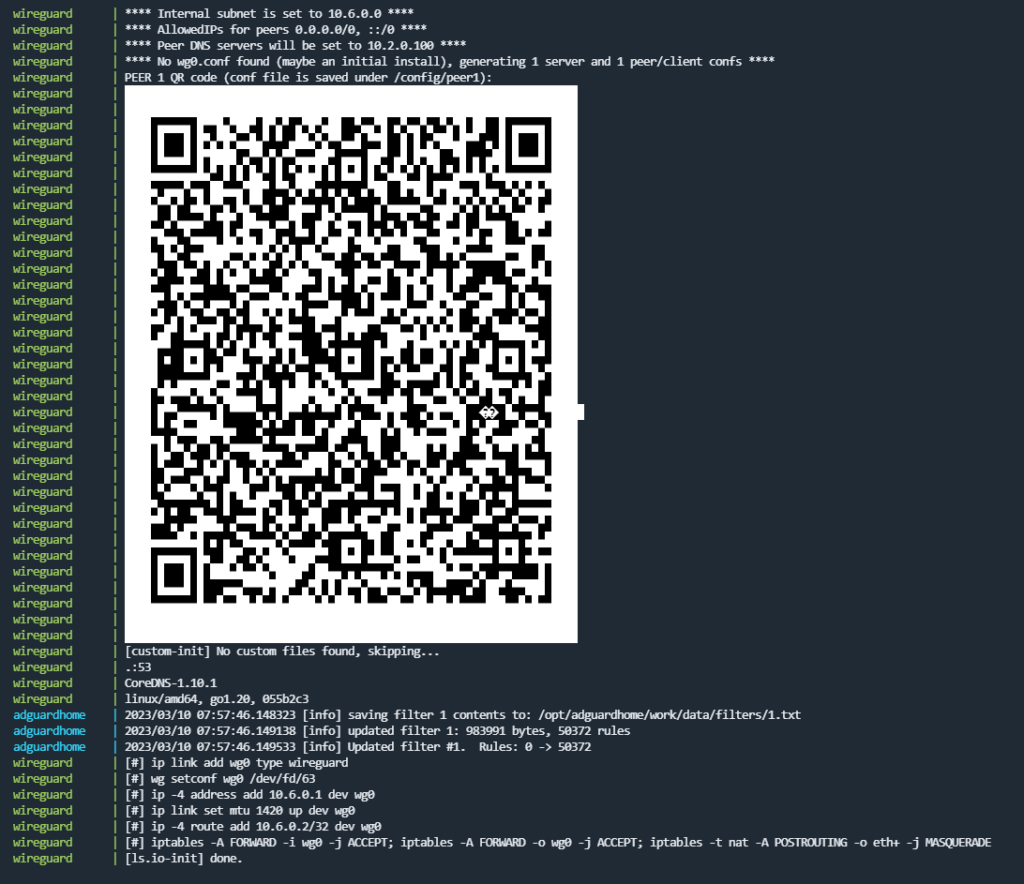
Также вы можете использовать следующую команду для вывода информации о пирах, предварительно перейдя в папку dwg-cli:
cd dwg-cli
./p.sh
Скриншот действия команды вывода пиров
Скриншот AdGuard Home
Конфигурационные файлы клиентов
Скачать конфигурационные файлы клиента для подключения к WireGuard вы можете через SFTP при помощи FileZilla или другого SFTP-клиента.
Конфигурации расположены в папках Peer1, Peer2 и т. д. по пути /user/dwg-cli/wireguard (вместо user — ваше имя пользователя Linux).
Файл с расширением .conf используется в основном для подключения с ПК и содержит текстовую информацию для подключения клиента WireGuard. Также его можно использовать для импорта туннелей из файла.
Файл с расширением .png — это сохранённые QR-коды для быстрого подключения клиента WireGuard с мобильного устройства.
Данные для входа в панель управления AdGuard Home (по умолчанию)
# Логин и пароль AGH по умолчанию могут отличаться, всегда проверяйте документацию сборки на GitHub
http://10.2.0.100 или http://agh.local
login: admin
password: admin

# или такой логин-пароль
login: admin
password: 12345678

# Скрипт для смены пароля AGH
bash <(wget -qO- https://raw.githubusercontent.com/DigneZzZ/dwg/main/change.sh)
Полезные ссылки
Статья впервые опубликована 01.04.2023 на openode.xyz; перенесена и обновлена 04.08.2026.